The Advisor Profile
The Advisor Profile
Learn how to update your advisor profile picture, change your password, find your dedicated 'travel quote request form' URL, and configure your annual commission goals. This guide provides a walkthrough for navigating the agent dashboard to keep your professional information and performance targets current.
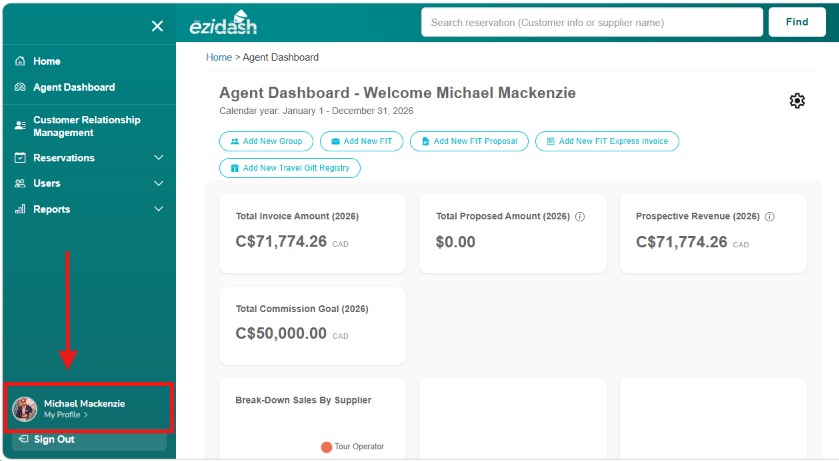
1. Let's visit your advisor profile. Click on the bottom left hand called "My Profile".
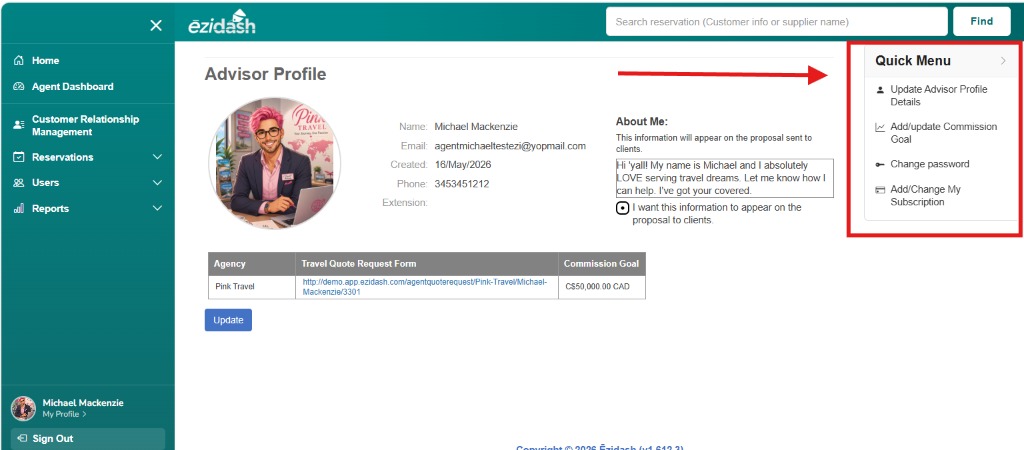
2. Under the Quick Menu at the top right of your screen you will see four options. The first option is "Update Advisor Profile" where you can edit your photo, name, email, phone number and the 'About Me' paragraph. The second option is "Add/update Commission Goal". The third option is "Change Password" and the last option is "Add/Change My Subscription".
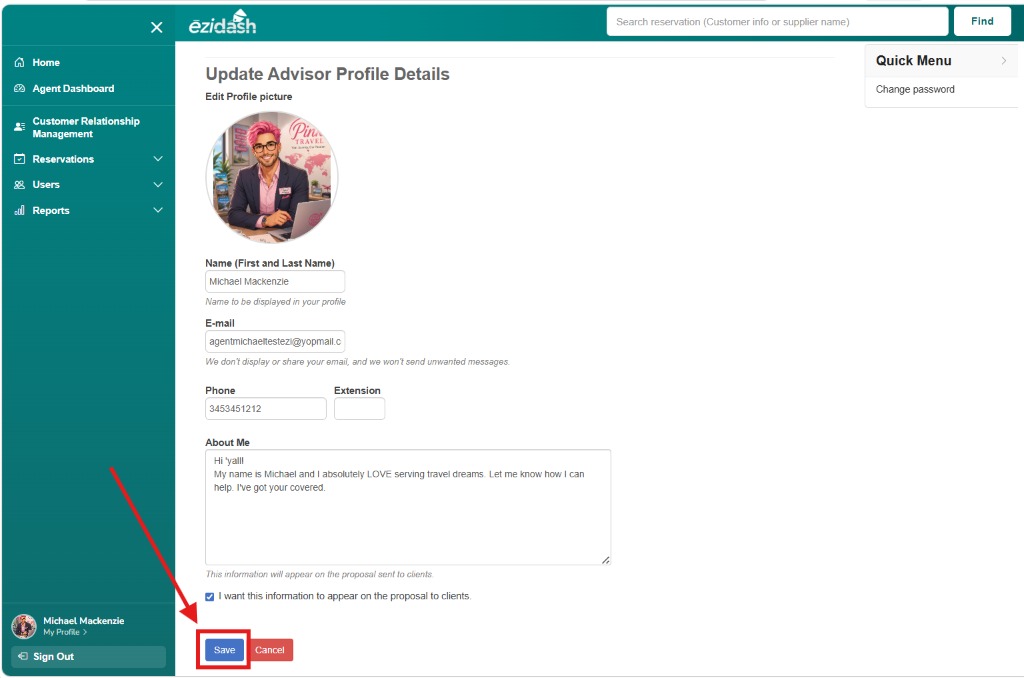
3. Let's explore "Update Advisor Profile" by clicking on this option. To change your profile picture, you simply click on the picture itself then upload a new image. Below, you can also edit and change your first and last name, email address, phone number and extension, and the "About Me" paragraph. You have the option to display this paragraph on your travel quote proposals in the Ēzi Quote feature of Ēzidash. Select the box below to choose "I want this information to appear on the proposal to clients". Deselect it if you wish not for this 'about me' paragraph to appear there. You can also change your password here under the Quick Menu at the top right and selecting "Change Password". Click "Save" to save the edits to your advisor profile.
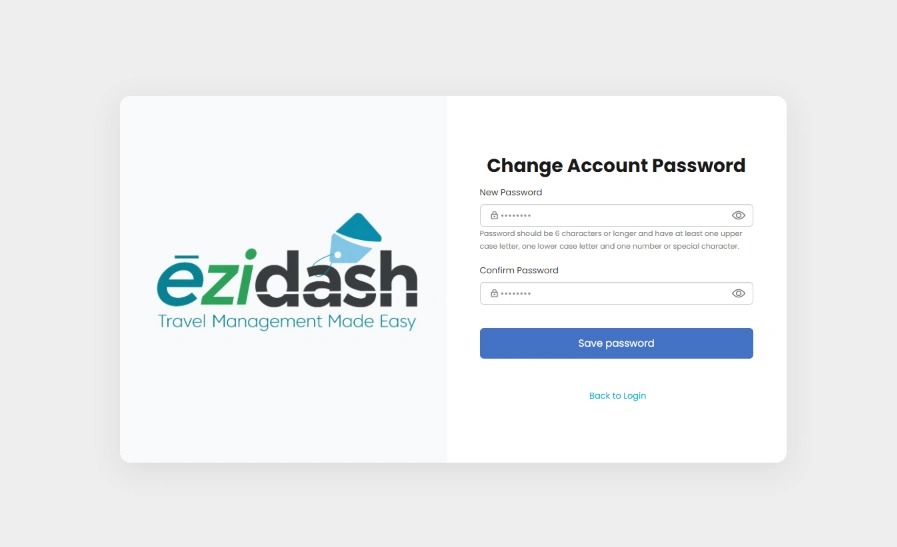
4. By clicking "Change Password" in the Quick Menu under the advisor profile, you will be redireced to the "change account password" page.
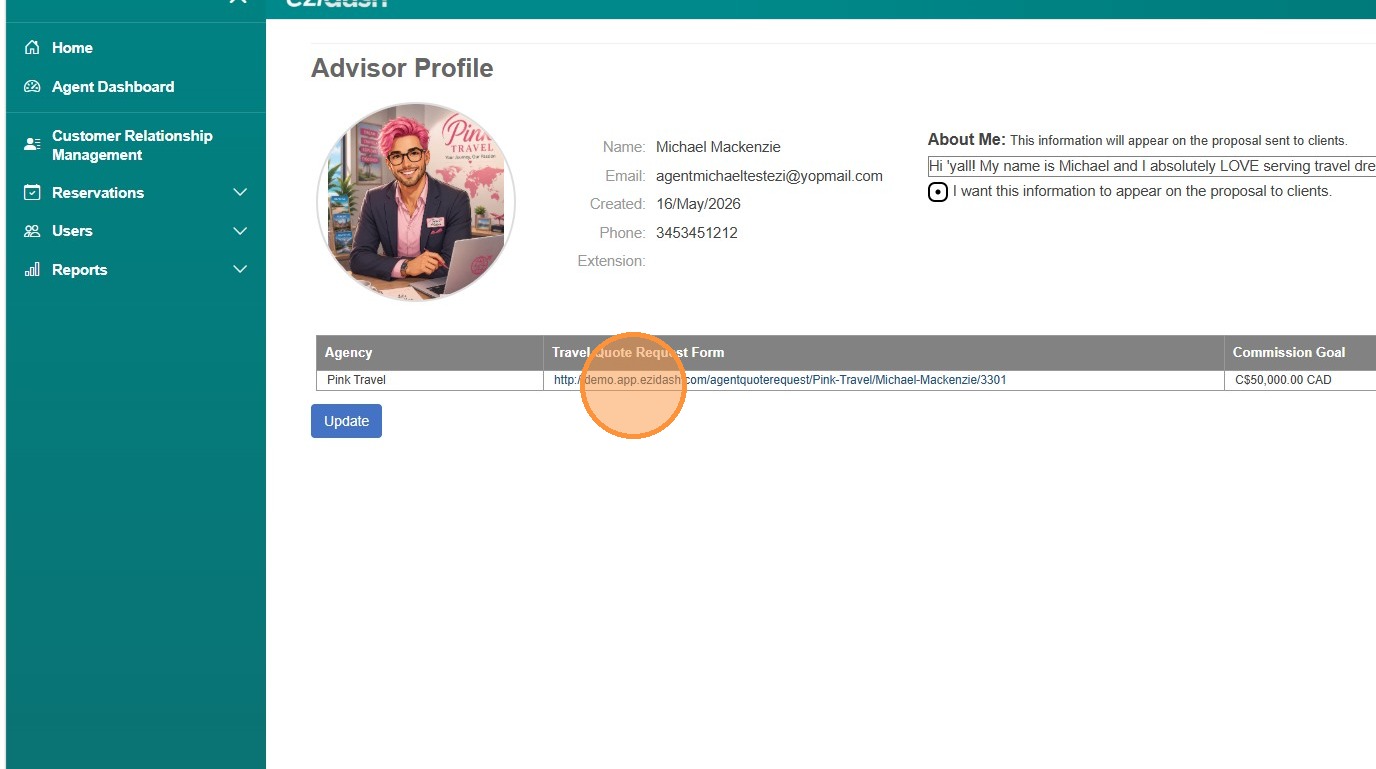
5. LEAD CAPTURE FORM: On your advisor agent profile, you will also find the lead capture URL for your dedicated "Travel Quote Request Form". This URL link is what you can include in your email signature, on your website and on your social media accounts. This URL is not editable.
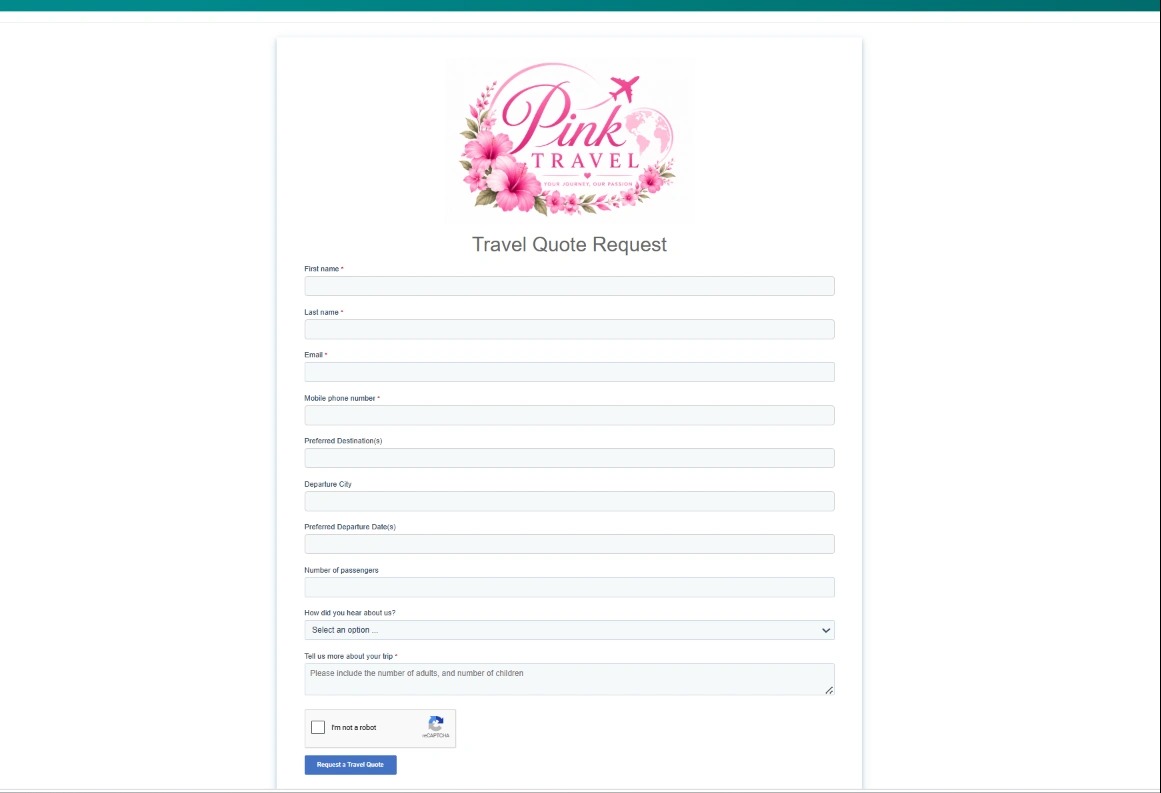
6. Your client-friendly Travel Quote Request Form directly links to your Ēzi CRM to help you grow your data-base and manage your leads under the Ēzi Quotes feature. It displays your agency's logo (which can be edited under the 'agency' tab). The fields capture the details of your prospective lead's contact information and travel details including first name, last name, email, phone number, destination, departure city, preferred departure dates, number of passengers, source of lead, and allows them to add more details about the trip. Once a client has submitted this form, you will be notified by email and the information will be stored in your complimentary Ēzi CRM as well as Ēzi Quotes if you have this feature.
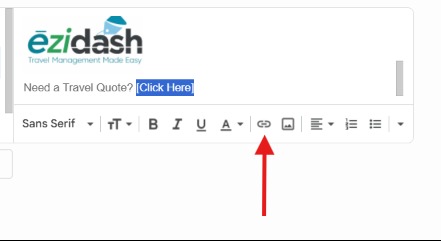
7. To add the URL link in your email signature, go to your email's general setting. Add the text you'd like to display such as "Need a Travel Quote? [Click Here]. Then highlight the text that you'd like to link to your travel quote request form and click the chain link button below.
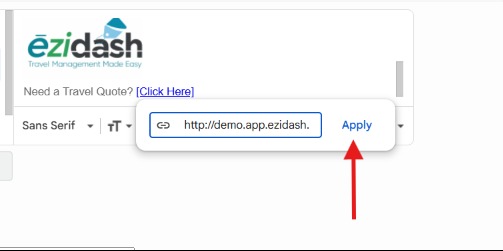
8. Copy your special URL link from your Advisor Profile and paste it here. Click "Apply". The lead capture link for your Travel Quote Request Form has now been added to your email signature.
9. Also under your advisor profile, you can set your commission goals for your calendar year. Under the Quick Menu on the right hand side of the screen, select "Add/Update Commission Goal."
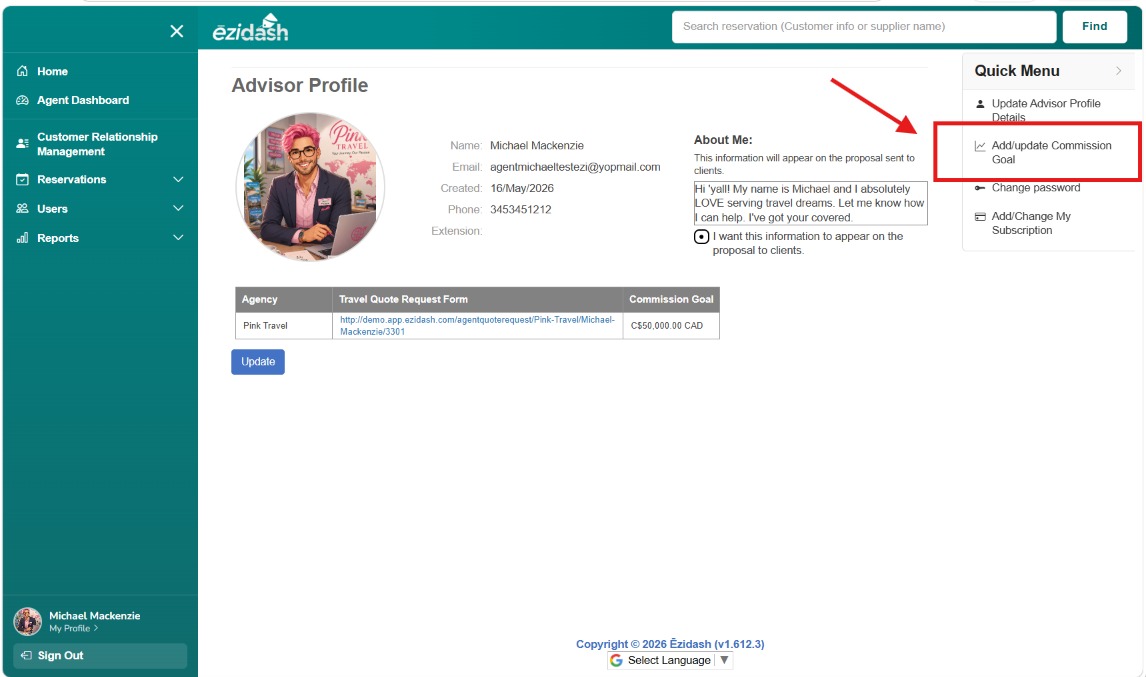
10. Under 'Set Annual Total Commission Goal' you can select the brand agency with whom you are setting your commission goals. Then enter in your total commission goal for the current calendar year and click "Save". This information will be displayed and compared against your actual received commission under the Agent Dashboard so you can monitor your goal regularly.
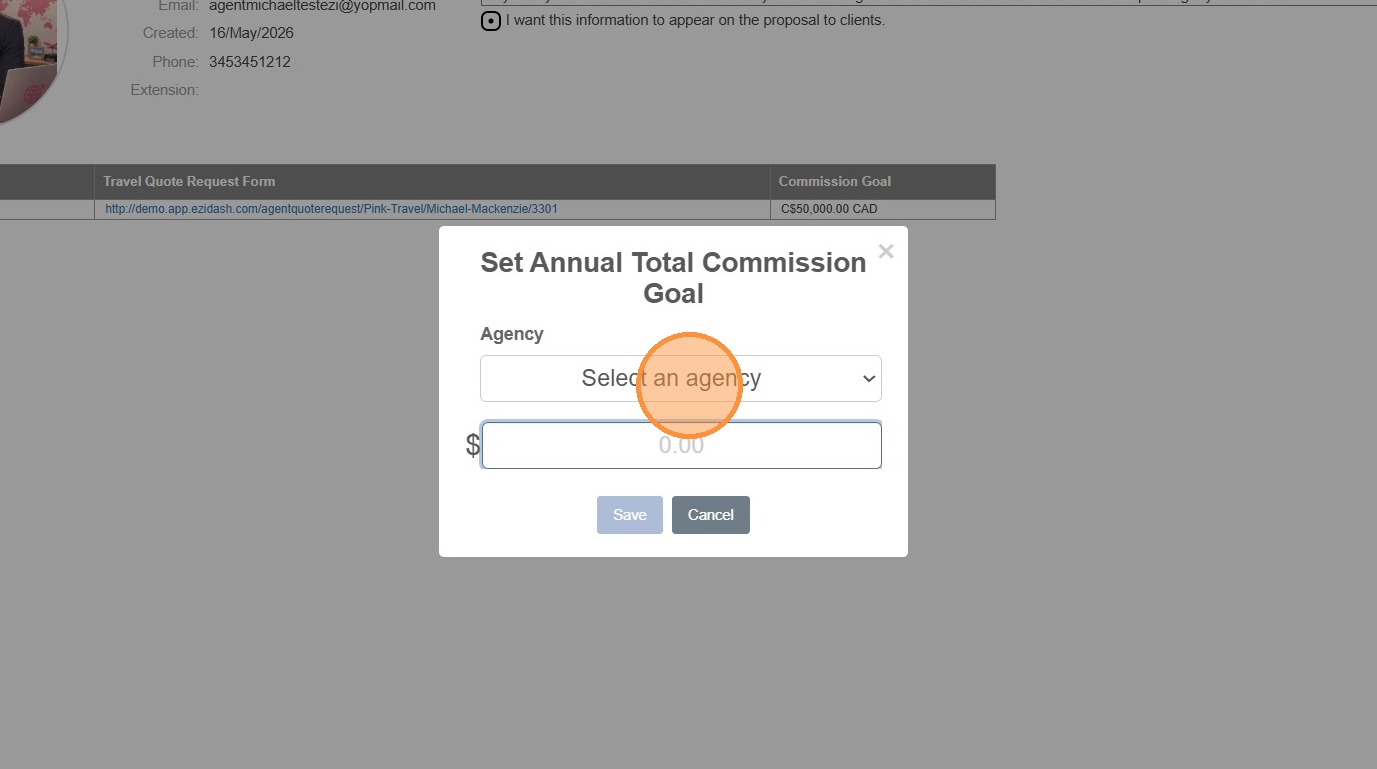
11. Also under your advisor profile, you can add or change your a la carte subscriptions. Under the Quick Menu on the right hand side of the screen, select "Add/change My Subscription."
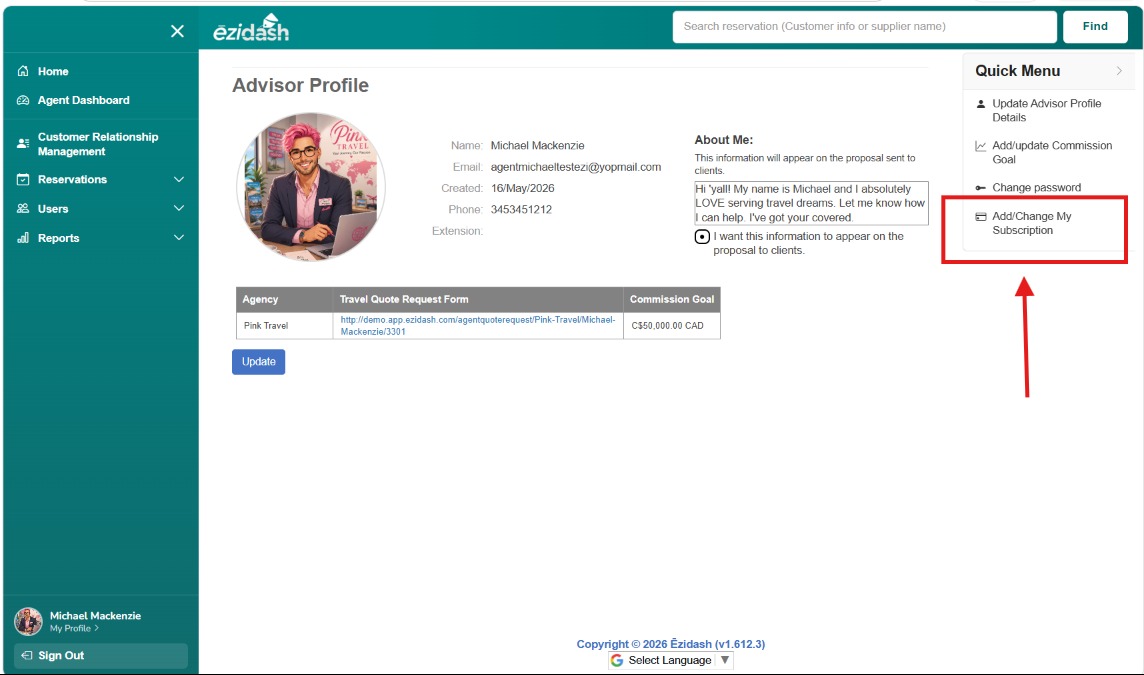
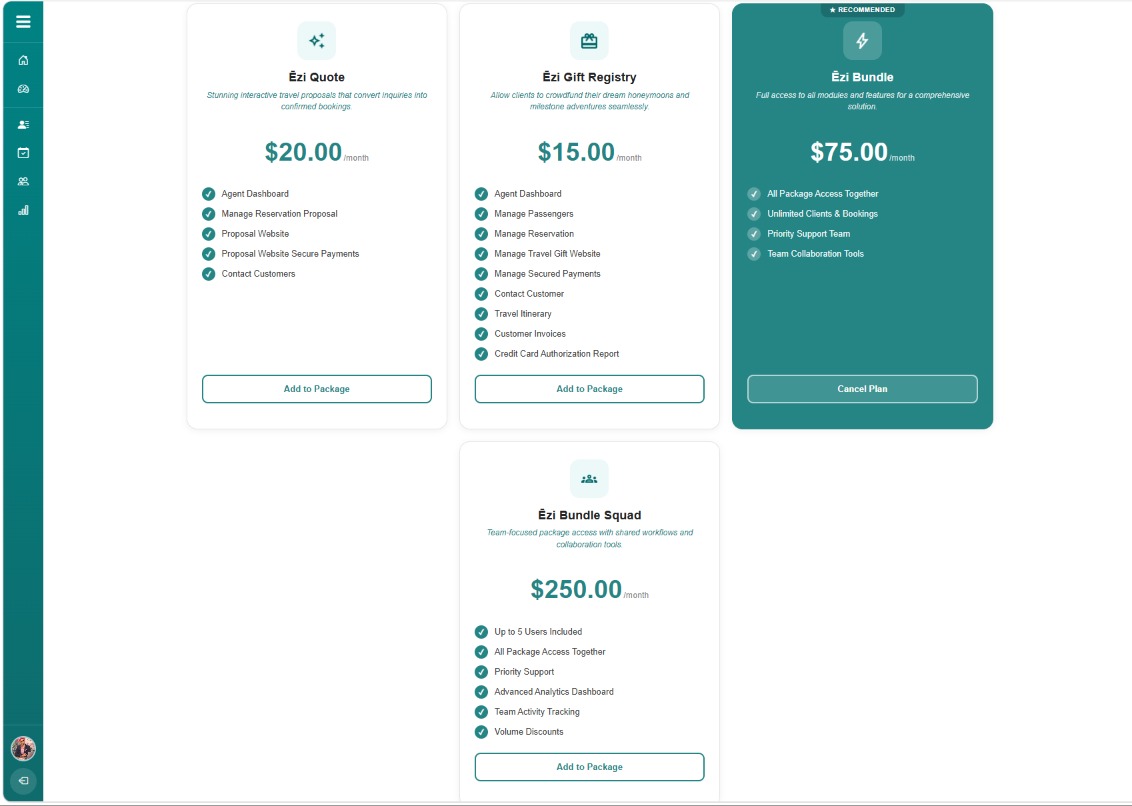
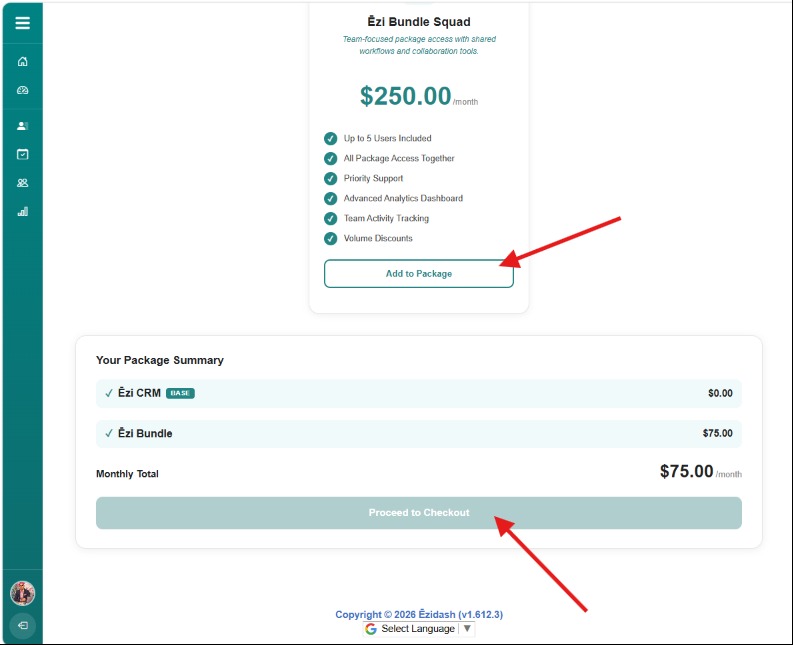
12. First toggle and select between the monthly or annual subscription. The annual price has a discount of 10%. You can add or update to any of the features you'd like. Ēzi CRM is forever free. Ēzi Invoice is your instant customer invoicing feature that comes with client email templates and robust sales and commission reports. Ēzi Groups automates your group booking processes and comes with client websites for your group leaders.
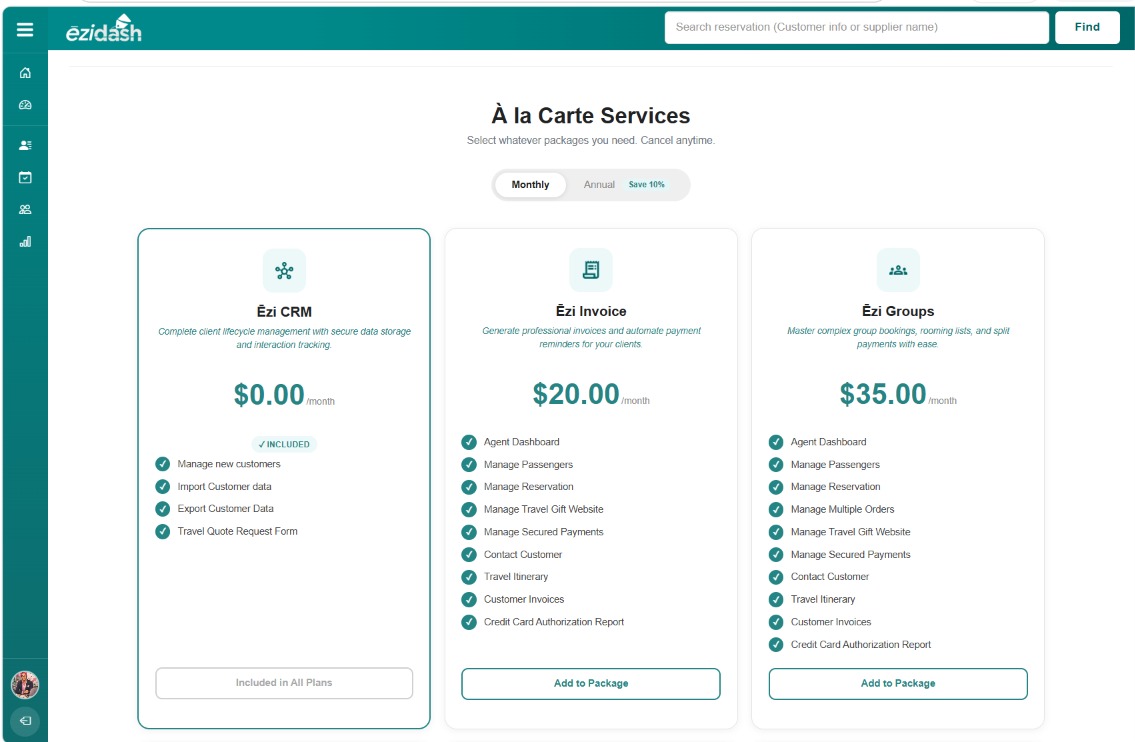
13. Scroll further down to view the Ēzi Quote option that allows you to send out beautifully designed quotes with a 'book here' button that converts to reservation in Ēzidash. You also have Ēzi Gift Registry which allows you to create a client website with secure payment collection. Ēzi Bundle in the all-in-one package that includes all of the features. Ēzi Bundle Squad is for teams of up to 5 users at a discounted price.
14. To add any feature, simply select "Add to Package" under any of the features and they will tally and display at the bottom of the screen. If you selected "monthly" this will display your total monthly subscription fee and if you selected "annual" then this will display your total annual subscription. Select "Proceed to Checkout" and enter in your payment details to complete your order. If you already have Ēzi Bundle, you won't be able to add other features as they are already included.
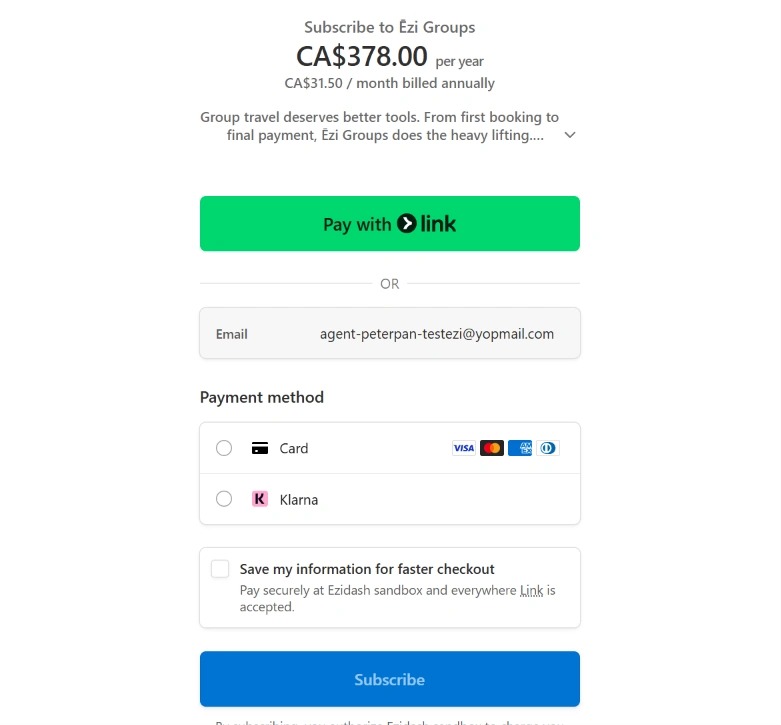
15. On the payment check-out page, you have the option to pay by visa, mastercard, american express, discover or Klarna. Please select the appropriate payment method for your subscription and click "Subscribe".
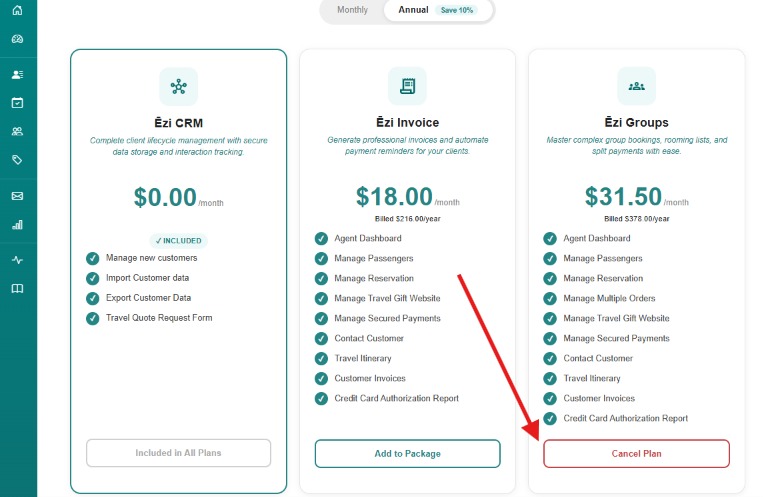
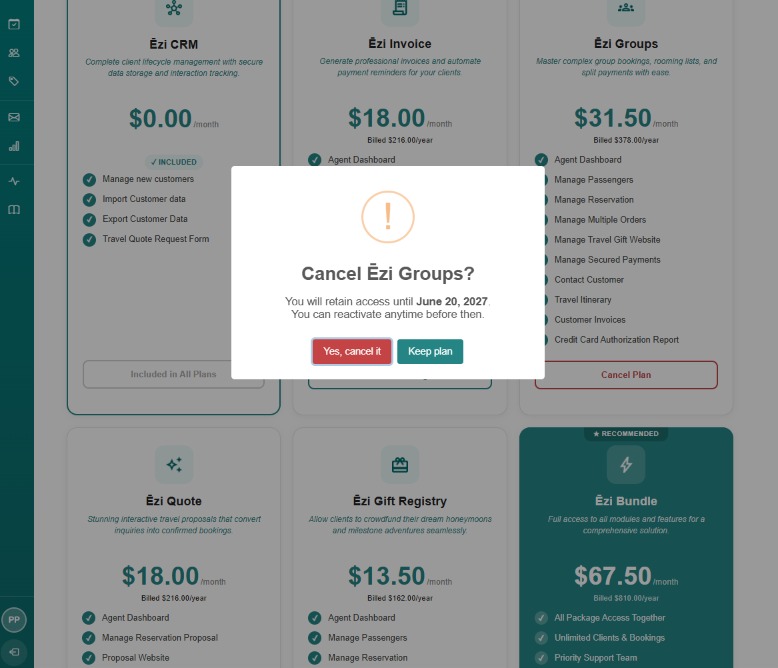
16. To cancel any feature in Ēzidash, you will go back to your Advisor Profile, scroll to the feature you'd like to cancel and select "Cancel Plan".
17. You will be prompted to confirm your cancellation. This pop-up will also detail the date when your already paid monthly or annual subscription will end. This means that after that date, you will no longer have access to the features of that plan you are cancelling. You can add them later at any time by following the steps above.
18. That completes our tutorial tour of the Advisor Profile.